Table of Contents
- Why PJSIP is the Standard for Modern Asterisk AI
- Prerequisites for Your AI Voice Agent Setup
- Core Asterisk PJSIP Configuration: The pjsip.conf File
- Crafting the Dialplan: Routing Calls to Your AI Agent
- Navigating NAT and Firewall Configurations
- How to Test and Debug Your Asterisk PJSIP Configuration
- Common PJSIP Errors and Their Solutions
- The AI Integration Flow: From Audio to Action
- Frequently Asked Questions (FAQ)
Welcome to the definitive 2026 guide for integrating advanced AI voice agents with your telephony system. As businesses increasingly rely on automated, intelligent voice interactions, a robust and flexible backend is non-negotiable. Asterisk, the world's leading open-source telephony toolkit, combined with its modern PJSIP channel driver, provides the perfect foundation. This guide will walk you through a complete Asterisk PJSIP configuration for AI, from initial setup to advanced debugging, ensuring you can deploy conversational AI that is both powerful and reliable.
Whether you're building a next-generation IVR, a customer service bot, or an outbound appointment reminder, mastering the Asterisk PJSIP setup is the critical first step. Let's dive into the configuration that will power your voice AI ambitions.
Why PJSIP is the Standard for Modern Asterisk AI
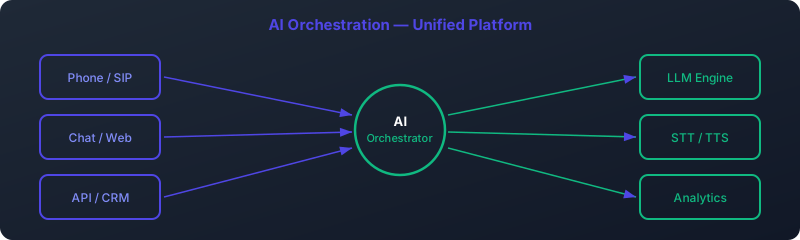
For years, chan_sip was the default SIP channel driver for Asterisk. However, it has been officially deprecated and is no longer the recommended choice for new deployments. The future, and present, of Asterisk SIP communication is PJSIP. For any project involving an Asterisk voice AI config, PJSIP is not just an option—it's a requirement.
- Modern, Modular Architecture: PJSIP is built on a fresh, more flexible library. It cleanly separates the concepts of endpoints, authentication, and address-of-record (AOR), allowing for more complex and logical configurations.
- Superior NAT Traversal: One of the biggest headaches in VoIP is Network Address Translation (NAT). PJSIP has vastly superior built-in support for STUN, TURN, and ICE, making it far more reliable for agents and servers operating behind firewalls—a common scenario in cloud-based AI deployments.
- Native WebRTC Support: AI agents are increasingly interacting with users through web browsers. PJSIP's native support for WebRTC (and its required transports like WSS) is essential for creating seamless browser-to-AI voice experiences.
- Multiple Contacts, Single Endpoint: PJSIP can handle multiple registrations from a single logical endpoint. This is perfect for a user who has a desk phone, a softphone, and a mobile app, all registered to the same extension.
- Active Development: The Asterisk development team actively maintains and improves PJSIP. All new features and security patches are focused here, while
chan_sipreceives only critical security fixes.
Prerequisites for Your AI Voice Agent Setup
Before we start editing configuration files, ensure you have the following components ready:
- A Linux Server: A stable server running a modern distribution like Ubuntu 22.04/24.04 or AlmaLinux 9.
- Asterisk 20+: This guide is optimized for Asterisk 20 or newer, which includes the latest PJSIP features.
- SIP Trunk Provider: An account with a provider like Twilio, OVH Telecom, or Bandwidth. We will use this to get calls in and out of our system.
- AI Agent Script: A script written in a language like Python, Perl, or Node.js that uses the Enhanced Asterisk Gateway Interface (EAGI). This script will handle the core AI logic.
- Basic Command-Line Skills: Familiarity with navigating the Linux shell and editing text files (e.g., with
nanoorvim).
Core Asterisk PJSIP Configuration: The pjsip.conf File
The heart of our setup is /etc/asterisk/pjsip.conf. PJSIP's power comes from its use of templates, which allow us to define common settings once and reuse them, keeping our configuration clean and manageable (the DRY principle: Don't Repeat Yourself).
Here is a complete, well-commented pjsip.conf example tailored for an AI agent deployment. We will break down each section.
;
; pjsip.conf - Complete Example for AI Voice Agent Integration
;

;================================;
;    GLOBAL & SYSTEM SETTINGS    ;
;================================;

[global]
type=global
; A descriptive user agent helps in debugging with SIP providers.
user_agent=My-AI-Asterisk-PBX v1.0
; Keep-alive packets are crucial for maintaining NAT pinholes. 30 seconds is a safe value.
keep_alive_interval=30
; Enable debug for troubleshooting, but disable in production for performance.
; debug=yes

;================================;
;          TRANSPORTS            ;
;================================;
; A transport defines how Asterisk communicates over the network (IP and Port).

[transport-udp]
type=transport
protocol=udp
bind=0.0.0.0:5060
; These external addresses are VITAL for servers behind NAT.
; Replace with your server's public IP address.
external_media_address=YOUR_PUBLIC_IP
external_signaling_address=YOUR_PUBLIC_IP

[transport-tcp]
type=transport
protocol=tcp
bind=0.0.0.0:5061
external_media_address=YOUR_PUBLIC_IP
external_signaling_address=YOUR_PUBLIC_IP

;================================;
;            TEMPLATES           ;
;================================;
; Templates prevent repeating common configuration lines.

[endpoint-basic](!)
; This is a template, denoted by (!)
type=endpoint
context=from-internal ; Default context for calls from this endpoint
disallow=all
allow=ulaw          ; G.711 U-law is the most common codec in North America
allow=alaw          ; G.711 A-law is common in Europe
allow=opus          ; A high-quality, low-latency codec, great for AI
transport=transport-udp

[auth-template](!)
type=auth
auth_type=userpass

[aor-template](!)
type=aor
; max_contacts=1 means only one device can be registered at a time for this AOR.
; For AI trunks, this is usually what you want. For user phones, you might increase it.
max_contacts=1

;================================;
;        ENDPOINT EXAMPLES       ;
;================================;

; --- Example 1: Softphone for Testing ---
; This defines a local extension (1001) for a softphone like Zoiper or MicroSIP.

[1001](endpoint-basic)
; Inherits settings from the [endpoint-basic] template
auth=1001-auth
aors=1001

[1001-auth](auth-template)
; Inherits settings from [auth-template]
password=a_very_strong_password
username=1001

[1001](aor-template)
; Inherits settings from [aor-template]


; --- Example 2: SIP Trunk for AI (Twilio Example) ---
; This defines the connection to your SIP Trunk provider.
; This example uses IP authentication, common with providers like Twilio.

[twilio-trunk](endpoint-basic)
; Inherit codecs and transport from the basic template
type=endpoint
context=from-sip-trunk ; Inbound calls from this trunk go to this context
aors=twilio-trunk
; Twilio sends calls from specific IPs, so we don't need registration/password.
; We identify the trunk by its source IP address.
identify_by=ip
; Add your provider's signaling IPs here.
match=54.172.60.0/23,54.244.51.0/24

; The 'from_domain' helps Asterisk match inbound calls to this endpoint.
from_domain=your-unique-name.sip.twilio.com

[twilio-trunk]
type=aor
; The 'contact' tells Asterisk where to send outbound calls.
contact=sip:your-unique-name.sip.twilio.com:5060

[twilio-trunk]
type=identify
endpoint=twilio-trunk
; Match header can also be used for more specific matching if needed.
; match_header=User-Agent: Twilio-SIP-GW
Key Sections Explained
- Transports: We define both UDP and TCP transports. While UDP is traditional, TCP can offer better reliability and simpler NAT traversal. Crucially,
external_media_addressandexternal_signaling_addressmust be set to your server's public IP if it's behind a NAT router. - Templates: The
(!)syntax creates a template. We define basic settings for endpoints, authentication, and Address of Record (AOR) objects. This makes our Asterisk SIP configuration clean and easy to scale. - Softphone Endpoint ([1001]): This is a standard internal extension. It's invaluable for testing your dialplan and AI agent by placing a call internally without needing a real phone number.
- SIP Trunk Endpoint ([twilio-trunk]): This is the gateway for external calls. This example for a SIP trunk Asterisk AI connection uses IP-based authentication, which is common for major providers. Calls arriving from Twilio's IP addresses will be matched to this endpoint and sent to the
from-sip-trunkcontext in the dialplan.
Crafting the Dialplan: Routing Calls to Your AI Agent
Now that PJSIP knows about our endpoints, we need to tell Asterisk what to do with the calls. This logic lives in /etc/asterisk/extensions.conf. We'll create two main entry points: one for external calls from our SIP trunk and one for internal test calls.
;
; extensions.conf - Dialplan for routing to an EAGI AI Agent
;

[from-internal]
; This context handles calls from internal extensions, like our softphone 1001.

; Route calls to extension 7000 to our AI Agent.
exten => 7000,1,NoOp(== Internal call to AI Agent from ${CALLERID(num)} ==)
    same => n,Answer()
    same => n,Verbose(1, Handing call over to EAGI script...)
    ; The EAGI application is the key. It executes our AI script.
    ; The script must be in /var/lib/asterisk/agi-bin/ and be executable.
    same => n,EAGI(ai-agent-main.py,arg1,arg2)
    same => n,Hangup()


[from-sip-trunk]
; This context handles calls coming from the outside world via our Twilio trunk.

; The '_.' pattern is a catch-all for any DID (phone number)
exten => _.,1,NoOp(== Inbound call from ${CALLERID(num)} to DID ${EXTEN} ==)
    same => n,Answer()
    same => n,Verbose(1, Routing inbound call to PJSIP endpoint AI agent...)
    ; Immediately send the call to the same EAGI script.
    same => n,EAGI(ai-agent-main.py)
    same => n,Hangup()
In this dialplan, any call arriving from our SIP trunk is immediately answered and handed off to the ai-agent-main.py script via EAGI(). Similarly, if our internal user on extension 1001 dials 7000, they are also connected to the AI. EAGI is critical because, unlike AGI, it provides a separate file descriptor (fd 3) for passing raw audio back and forth between Asterisk and the script, which is essential for real-time speech recognition and synthesis.
Navigating NAT and Firewall Configurations
Incorrect NAT configuration is the source of 90% of VoIP problems, most commonly "one-way audio" (you can hear the caller, but they can't hear you, or vice-versa). Here's how to get it right for your Asterisk PJSIP configuration AI server.
Critical NAT & Firewall Checklist
- Static Public IP: Your Asterisk server needs a static public IP address.
- pjsip.conf Settings: In your transport definitions (e.g.,
[transport-udp]), you MUST set:external_media_address=YOUR_PUBLIC_IPexternal_signaling_address=YOUR_PUBLIC_IP
- Firewall Port Forwarding: On your firewall/router, you must forward the following ports to your Asterisk server's private IP:
- 5060/UDP (for SIP Signaling)
- 5061/TCP (if using TCP for SIP Signaling)
- 10000-20000/UDP (for RTP Media Streams). This range is defined in
/etc/asterisk/rtp.conf.
Failing to correctly configure these three areas will result in calls that don't connect or have no audio. The external address settings tell Asterisk what IP to put in the SIP/SDP packets so the other end knows where to send media (RTP) and signaling responses.
How to Test and Debug Your Asterisk PJSIP Configuration
Once your files are configured, it's time to test. Debugging VoIP can be intimidating, but Asterisk provides powerful tools to see exactly what's happening.
Step-by-Step PJSIP Debugging Process
Step 1: Reload Configuration and Start the CLI
After saving your pjsip.conf and extensions.conf files, connect to your server's console. Reload Asterisk to apply the changes and enter the interactive command-line interface (CLI).
sudo asterisk -rx "core reload"
sudo asterisk -rvvv
The -rvvv provides a good level of verbosity.
Step 2: Enable PJSIP Logging
To see the raw SIP messages being exchanged, which is invaluable for debugging registration and call setup issues, enable the PJSIP logger.
asterisk*CLI> pjsip set logger on
You will now see all incoming and outgoing SIP packets in your console.
Step 3: Verify Endpoint Status
Check if your endpoints are configured and registered correctly. Register your softphone (e.g., Zoiper) with the credentials for extension 1001.
asterisk*CLI> pjsip show endpoints

 Endpoint:  1001                                               Not in use    0 of 1
     In use: 0/0, Max Cnt: 1, Call{s}: 0, MWI: 0
     Aor:  1001                                               1
   Contact:  1001/sip:1001@192.168.1.150:56165;... Avail         24.874

 Endpoint:  twilio-trunk                                       Not in use    0 of 1
     In use: 0/0, Max Cnt: 1, Call{s}: 0, MWI: 0
     Aor:  twilio-trunk                                       0
Look for your softphone's status to be "Avail" and check that the contact IP is correct.
Step 4: Place a Test Call
Using your registered softphone (extension 1001), dial 7000. Watch the Asterisk CLI for the call flow.
You should see output similar to this:
-- Executing [7000@from-internal:1] NoOp("PJSIP/1001-00000001", "== Internal call to AI Agent from 1001 ==")
-- Executing [7000@from-internal:2] Answer("PJSIP/1001-00000001", "")
-- Executing [7000@from-internal:3] Verbose("PJSIP/1001-00000001", "1, Handing call over to EAGI script...")
-- Executing [7000@from-internal:4] EAGI("PJSIP/1001-00000001", "ai-agent-main.py,arg1,arg2")
-- Launched AGI Script /var/lib/asterisk/agi-bin/ai-agent-main.py
This confirms the call was correctly routed through the dialplan and your EAGI script was triggered. If the script runs successfully, the call will be handled by your AI. If it fails, the CLI will show an error message.
Common PJSIP Errors and Their Solutions
Even with a perfect guide, you might run into issues. Here's a quick troubleshooting table for the most frequent problems with an Asterisk PJSIP setup.
| Error Message / Symptom | Probable Cause | Solution |
|---|---|---|
| One-way audio or No audio | NAT Configuration Error | Verify external_media_address and external_signaling_address in pjsip.conf. Ensure your firewall is forwarding the RTP port range (10000-20000 UDP) correctly. |
| 401 Unauthorized or 403 Forbidden | Authentication Failure | Double-check the password in your softphone and in the [auth-template] section of pjsip.conf. For IP-authenticated trunks, ensure the call is coming from an IP listed in the match parameter. |
| "AGI Script ... not found" | EAGI Script Path/Permissions | Ensure your AI script is located in /var/lib/asterisk/agi-bin/, that its name matches the dialplan exactly, and that it has execute permissions (chmod +x ai-agent-main.py). Also check that the file is owned by the 'asterisk' user (chown asterisk:asterisk ai-agent-main.py). |
| Call fails immediately with "Congestion" | Dialplan Logic Error | The dialplan could not find a valid application to execute for the dialed extension. Check for typos in extensions.conf. Use dialplan show <context-name> in the CLI to verify. |
| Endpoint is "Unavailable" | Network Connectivity / Registration Failure | Check that the device can reach the Asterisk server over the network. Use pjsip set logger on to see if registration (REGISTER) requests are reaching the server and how the server is responding. |
The AI Integration Flow: From Audio to Action
The Asterisk configuration is the foundation, but the magic happens inside your EAGI script. The typical flow for a real-time conversational PJSIP endpoint AI agent is a low-latency